©Tech Contributors | All Rights Reserved

LogPulse provides a secure REST API that allows you to send application activity logs and retrieve them anytime. Before using the API, you must create a project and generate an API key from your dashboard.
https://logpulse.techcontributors.com/api/v1/logs
Login to your dashboard and create a new project. Each project has a unique API key used for authentication.
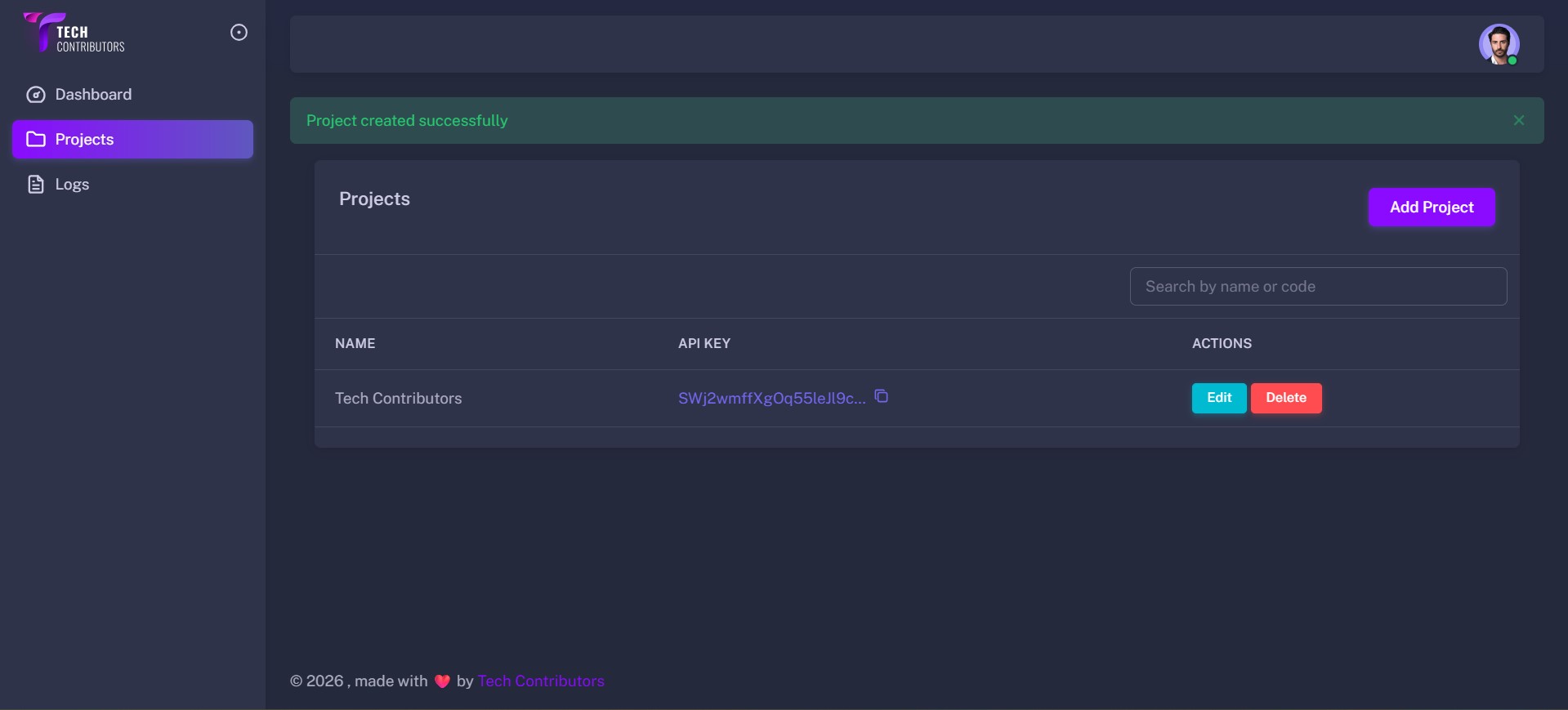
All API requests must include your API key in request headers.
X-API-KEY: YOUR_API_KEY
Accept: application/json
Content-Type: application/json
Use HTTP POST to send logs to LogPulse.
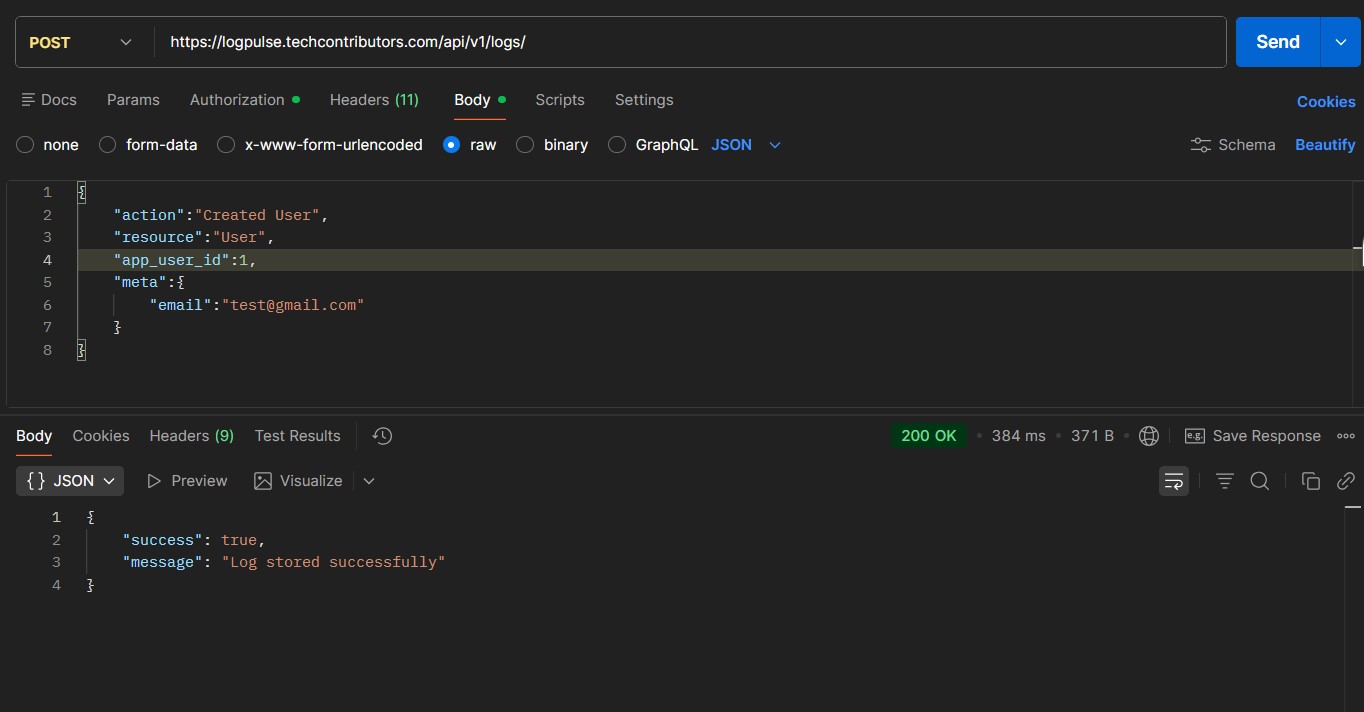
Example JSON Body:
{
    "action": "login",
    "resource": "auth",
    "app_user_id": 1,
    "meta": {
        "note": "User logged in"
    }
}
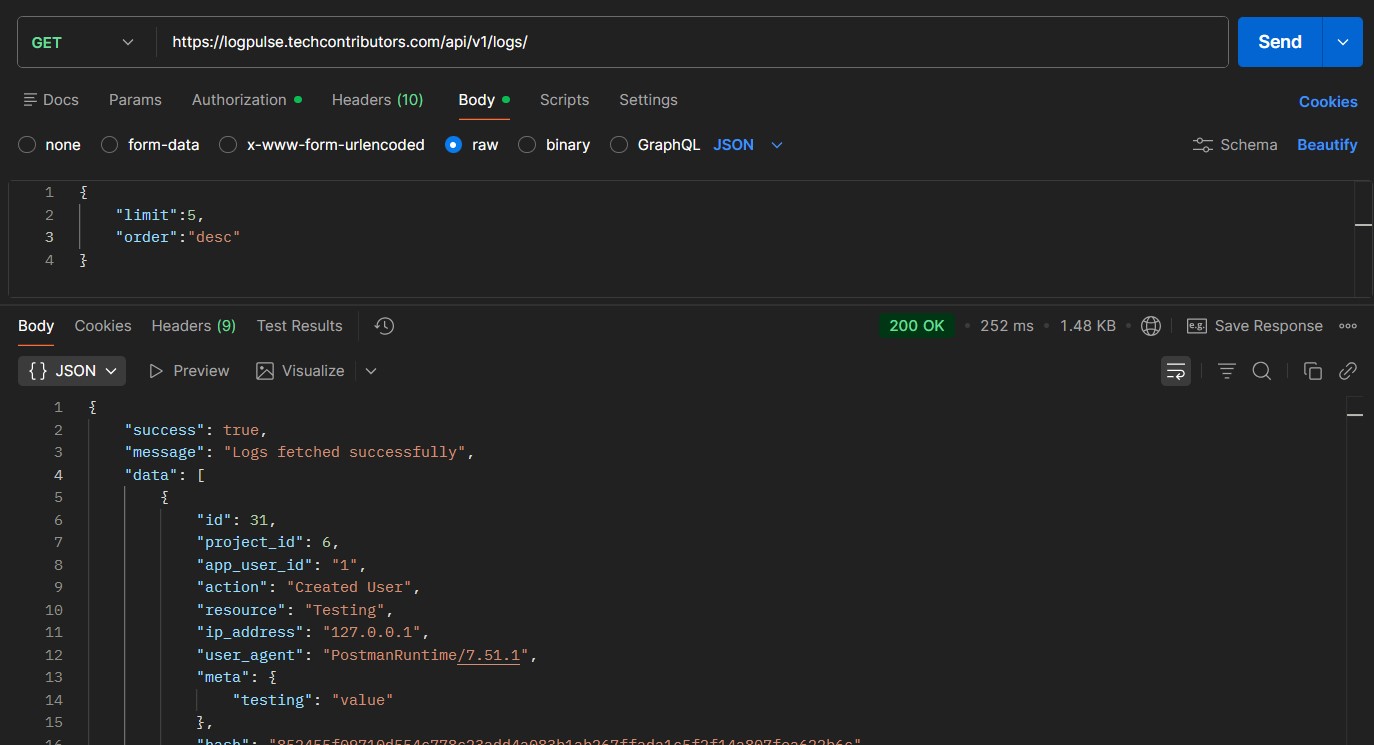
You can fetch logs using a GET request with optional query parameters.
The LogPulse WordPress plugin automatically tracks important website activities such as user logins, content updates, media uploads, and more.
Download the plugin from the LogPulse website or install it from the WordPress plugin directory (when available). Upload and activate the plugin from your WordPress admin panel.
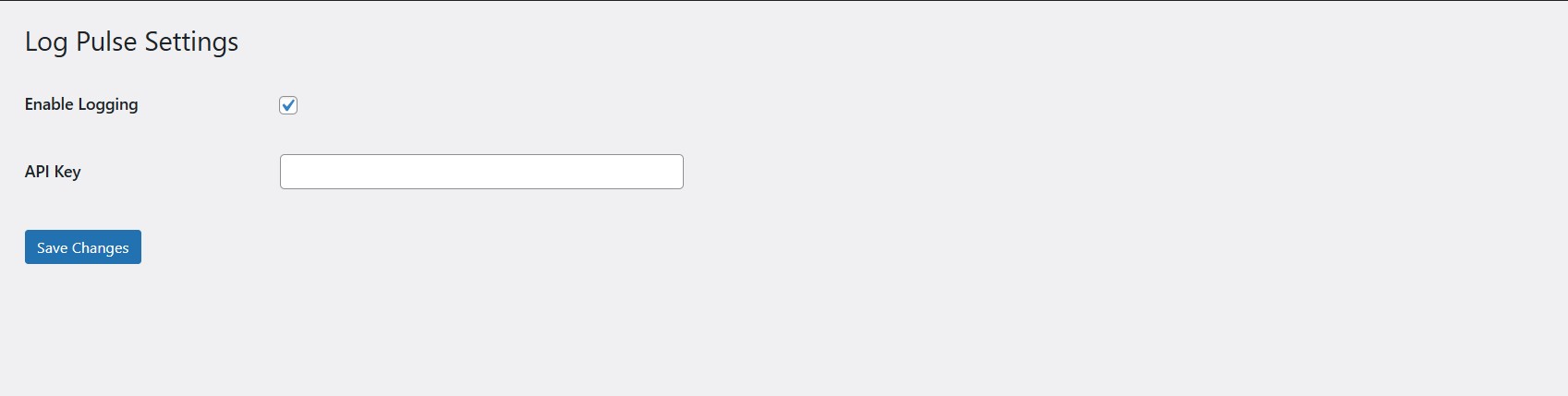
Once configured, your WordPress site will automatically send activity logs to your LogPulse dashboard.
If you need help with integration or setup, contact our support team.
Tech Contributors
Email: support@techcontributors.com
Website: https://www.techcontributors.com
©Tech Contributors | All Rights Reserved